Quick FAQ Navigation
Where can I find master setup screens?
Start from Other Masters, then open Account Head, Party Master, Item Master, and Branch Master.
How to configure rates, formulas, and sequences?
Open Item Rate Master, Bill Formula, Item Formula, Formula Sequence Head, and Sequences.
Where are financial controls and opening balances?
Go to Financial Year Master, Opening Balance, and ScheduleVI.
How do I manage schemes and sales workflows?
Review Tr Sale Purchase, Partywise Schemes, Scheme Master, and Salesman Target.
Where to manage user and validation setup?
Use User Master, Banned Status, and Option Set.
Can I still open a topic in a new tab?
Yes. Use the Open in New Tab button above the viewer whenever needed.
INCIDENT
If we modify the bill, we cannot modify tax.
Once a bill has been modified, the tax details linked to that bill cannot be edited. This restriction helps maintain the accuracy and consistency of billing records and prevents calculation mismatches. If you need to update the tax, you must first delete the existing tax entry. After removing it, you can add the tax again with the correct details. The system will automatically recalculate the bill using the newly added tax information. Always verify the tax values before saving to avoid the need for repeated changes. If multiple taxes are applied, delete only the tax that requires correction and re-add it with the updated information. This ensures your bill reflects the correct tax calculation and remains accurate.
When connectivity is lost in any case (LAN/WAN), data rollback is not possible.
A stable internet connection is essential while creating bills or syncing data. If the connection is interrupted during these operations, the process may stop before it is completed, resulting in partial or incomplete data being saved. This can lead to missing bill details, incorrect tax information, or synchronization issues between your device and the server. To avoid these problems, ensure you have a reliable network connection before starting billing or syncing. Wait until the operation is fully completed and a success confirmation is displayed before closing the app or switching networks. If a connection issue occurs, verify that the bill and sync status are complete before continuing with additional transactions.
When previous bill is modified, it can affect the current bill.
Modifying a backdated invoice may affect stock balances, tax calculations, and financial reports for the selected date. Since inventory and accounting records are maintained chronologically, changes to an older invoice can impact subsequent transactions and stock availability. Before saving any changes, review the current stock levels and verify that the updated quantities are valid. If the invoice includes taxes, ensure the tax details are correct, as some tax fields may not be editable after modification. After updating the invoice, perform a data sync if required so that all records remain consistent across devices. Always verify the invoice details before saving to avoid discrepancies in inventory and financial reports.
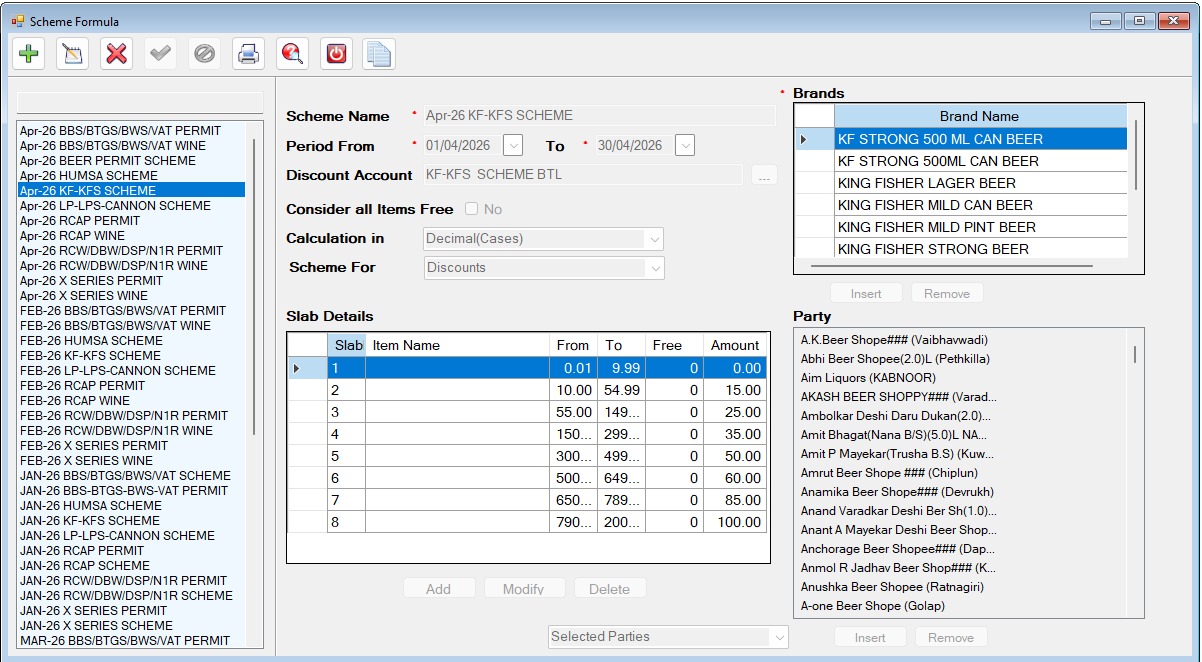
When you define scheme, provide proper date and proper scheme head.
When creating a scheme formula, ensure that all slab ranges are configured correctly and that the required brands are assigned to the scheme. Each slab should have the correct From and To values, along with the applicable discount or free quantity. If any slab is missing, overlaps with another slab, or has an incorrect range, the system may not apply the scheme discount correctly. Similarly, if an eligible brand is not included in the Brands section, products from that brand will not qualify for the scheme. Before activating the scheme, review every slab, verify the brand mappings, and test the scheme with sample transactions. This ensures that the correct slab is selected automatically and the appropriate scheme discount is applied during billing.